Twisted Ribbon
This effect is an animated 3D ribbon that continuously twists and pulses like a wave, rendered in real time with customizable colors, lighting, and camera angles. It’s fully self-contained on the canvas, respects the user’s `prefers-reduced-motion` setting by automatically pausing the animation when reduced motion is requested.
We Put a Rectangle on the Internet
It rotates. That's the product now.
Because Your Hero Section Wasn't Heavy Enough
A 60fps ribbon that twists, so your landing page can load slower with style.
Immersive. Engaging. Unforgettable.
It's a spinning rectangle. But it feels expensive.
Stop Scrolling. Start Feeling.
The rectangle certainly felt something. Look at it go.
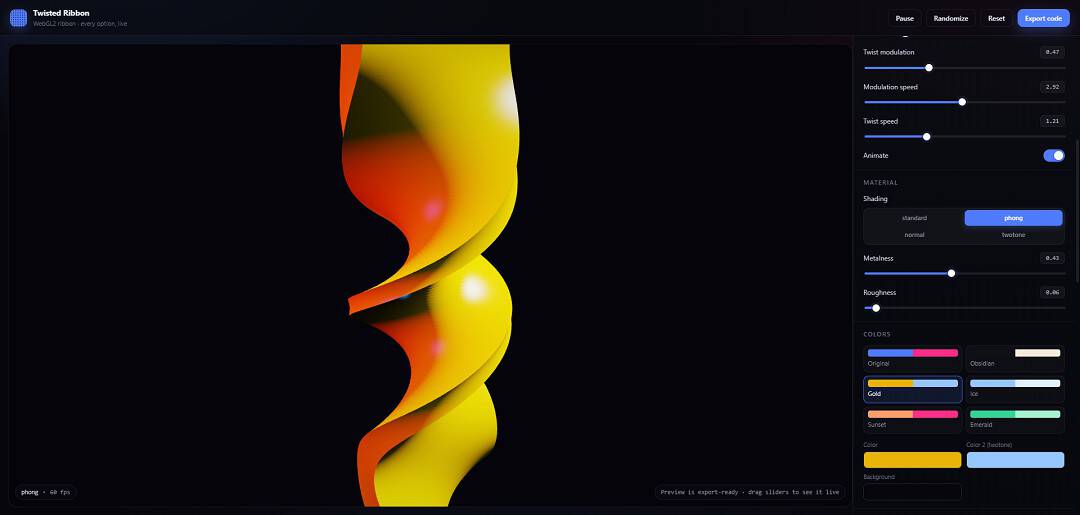
Twisted Ribbon Generator
Generator instructions: Simply copy one of the sections above and paste it into your website.
To create a new effect, use the generator, then click the Export code button and paste the code into the Supa Code Block element to replace the current effect.
To create a new effect, use the generator, then click the Export code button and paste the code into the Supa Code Block element to replace the current effect.
ONLY AVAILABLE FOR MEMBERS
Instructions
Open the JS script in the Supa Code Block element and edit the options at the end of the script. Each option is explained below:
Targeting the Canvas
canvas — A direct reference to an existing <canvas> DOM element. This is the preferred way to specify where the 3D scene gets rendered. If you provide this, the selector option is ignored.
selector — A CSS selector string (like "#my-canvas" or ".ribbon"). The function calls document.querySelector() on it to find the canvas. This only works if you didn’t already pass a canvas element.
Note: whatever it finds must actually be a <canvas> element — a <div> or other container will fail with an error and the function returns null.
Appearance & Material
color — The primary hex color of the ribbon (default #4f7cff, a blue). This colors the first group of faces in the geometry (the front/back faces and the first pair of sides).
color2 — A secondary hex color used only when shading is set to "twotone". It colors the remaining faces (the two edges and the remaining sides), creating a two-tone look. It’s stored regardless, so switching shading modes later reveals it.
shading — Selects the lighting model. Three accepted values:
"standard"— Full PBR-style shading with metallic response, roughness-based specular, environment reflections, hemisphere ambient light, and rim lights. This is the richest look."phong"— A simpler, cheaper classic Phong-style shading: a single key light with diffuse + specular highlight, plus hemisphere fill and rim lights. Used in the example call at the bottom."normal"— A debug/visualization mode where each fragment is colored by its surface normal (the classic “normal map” rainbow look). No lights are used.
There’s also a hidden "twotone" mode referenced internally — when set, the two halves of the mesh get color and color2 respectively.
metalness — How metallic the surface behaves in PBR shading (0 = non-metal/dielectric, 1 = fully metallic). Metals reflect their base color in speculars rather than white. Only affects "standard" shading. Default is 0.9 (very metallic).
roughness — Surface micro-roughness in PBR shading (0 = mirror-sharp reflections, 1 = completely diffuse). Lower values produce tighter, sharper highlights and reflections. Default 0.16 is quite glossy.
Geometry & Shape
width — The thickness of the ribbon along its lateral axis (default 2.4).
height — The vertical length of the ribbon (default 12). This is the axis along which the twist and wave effects occur.
depth — The thickness of the ribbon front-to-back (default 0.8). Combined with width, this defines the rectangular cross-section.
segmentsY — The number of subdivisions along the ribbon’s vertical axis (default 240). Higher values mean smoother twist/wave deformation but more CPU work every frame, since vertices are re-computed and re-uploaded each animation tick. Also note the mesh uses Uint16 indices, so there’s a practical ceiling (~65k vertices) — with default settings you’re well within bounds, but pushing segmentsY extremely high could overflow.
Twist & Motion
twistDegrees — The amplitude of the twist in degrees (default 72). The ribbon rotates around its vertical axis by up to this amount (scaled by the sine of the wave and the modulation below).
twistWaves — How many full twist wave cycles fit along the ribbon’s height (default 1). With 1, the ribbon twists one way and back once over its length. Higher values create more corkscrew-like undulations.
twistSpeed — The animation speed of both the twist wave and its phase travel (default 0.9). This advances the internal travel and osc clocks.
waveMotion — Controls how the twist wave moves along the ribbon. Accepted values:
"standing"— A standing wave: the twist oscillates in place along the ribbon (like a vibrating guitar string), with an amplitude envelope pulsing over time. In this mode,pulseComplexitymatters."up"— A traveling wave that moves upward along the ribbon."down"— A traveling wave moving downward."bounce"— The wave phase oscillates back and forth (a sinusoidal bounce) rather than traveling continuously.
pulseComplexity — Only meaningful in "standing" mode (default 1). At 0, the standing wave uses a single simple cosine envelope. At 1, it layers four sine/cosine components of different frequencies and phases (layeredPulse), producing a more organic, irregular pulsing. Intermediate values blend between the two. In the example call it’s set to 0 for a cleaner, simpler motion.
twistMod — Amplitude of a secondary modulation applied to the twist strength itself (default 0.45). The overall twist amplitude breathes over time — it can grow up to about 1 + twistMod times or shrink below 1.
twistModSpeed — How fast that modulation breathes (default 1.7). It uses two layered sines at different rates.
animate — Whether the scene continuously animates (default true). When true, a requestAnimationFrame loop runs, advancing the twist, modulation, and noise clocks. When false, a single frame is rendered and nothing moves. Also note: if respectReducedMotion is on and the user’s OS has reduced motion enabled, this gets forced to false regardless.
Object Orientation
These rotate the mesh itself, in degrees, applied as an Euler rotation (X, then Y, then Z):
rotationX — Rotation around the world X axis (default 0). In the example it’s 42, tipping the ribbon toward the viewer.
rotationY — Rotation around the world Y axis (default 0). In the example it’s -51, spinning the ribbon sideways.
rotationZ — Rotation around the world Z axis (default 0), i.e., roll in screen plane.
Camera
The camera always orbits and looks at the origin. Its position is computed from spherical-ish coordinates:
cameraDistance — How far the camera sits from the origin (default 18). The example zooms in considerably to about 8.76.
cameraElevation — Vertical angle in degrees (default 15). Positive values look from above, negative from below. The example uses about -21.6, looking slightly upward from below.
cameraAzimuth — Horizontal orbit angle in degrees around the Y axis (default 24). The example uses about 85.6.
Rendering & Post-Processing
transparentBackground — When true (default), the WebGL canvas keeps a transparent alpha channel, so the ribbon composites over whatever is behind it in your page. When false, the composite pass fills the background with the background color and outputs fully opaque pixels.
background — The hex color used for the background when the output is opaque (default #07070b, near-black). It’s also involved in the alpha-blend of the composite pass when transparentBackground is off.
exposure — Tone-mapping exposure multiplier applied before ACES tone mapping (default 1.05). Values above 1 brighten the scene, below 1 darken it.
keyLight — Intensity of the main directional key light (default 2.2). This is the primary light direction (defined internally, roughly from the upper right).
rimLights — Intensity of two colored point lights positioned behind the object (default 220 — they’re distance-attenuated, hence the large number). These produce edge-glow highlights. In the default (non-neutral) palette they’re pink (#ff2e88) and cyan (#22b8ff).
neutralLighting — When true, replaces the colorful default palette with a grayscale/white lighting setup: white rim lights, neutral hemisphere sky/ground, and gray environment reflections. Useful for a clean product-shot look. Default false.
Chromatic Aberration
caEnabled — Toggles the chromatic aberration post-effect in the composite pass (default false). When on, red and blue channels are sampled at slightly offset positions radially outward from screen center, simulating lens fringing.
caAmount — The strength of the aberration (default 0.025). It’s proportional to distance from screen center. Note in the example it’s explicitly set to 0 — it only matters when caEnabled is true.
Film Grain / Noise
noiseEnabled — Toggles a per-pixel film-grain effect computed in the fragment shader (default false). The noise is blocky (quantized by noiseScale) and animated.
noiseMode — How the noise is applied. Three values:
"mono"(default) — The noise adds or subtracts symmetrically around zero:color += (n - 0.5) * amount, producing both brighter and darker speckles."dark"— The noise only darkens:color *= (1 - n * amount)."light"— The noise only brightens:color += n * amount.
noiseAmount — The strength of the grain (default 0.05).
noiseScale — The size of the noise “blocks” in pixels — noiseScale of 1.4 means pixel coordinates are divided by 1.4 before hashing, so values above 1 create chunkier grain, below 1 finer grain.
noiseSpeed — How fast the grain pattern changes over time (default 1). It advances a noise clock each frame.
Accessibility & Behavior
respectReducedMotion — When true (default), the function checks the CSS media query prefers-reduced-motion: reduce. If the user has that enabled, animate is forced off and the scene renders a single static frame. The function also listens for changes to this setting at runtime and will pause/resume accordingly, calling your onMotionChange callback if provided.